What if one software could handle all your creative projects without overwhelming complexity?
Many designers struggle with tools that are either too basic or too complicated. This leaves them searching for the perfect balance.
Modern graphic design demands powerful yet accessible solutions. Professionals and hobbyists alike need software that grows with their skills.
Amadine provides a comprehensive toolkit in one place. It’s built for precision and user-focused workflow.
The program aims to turn ambitious ideas into reality. It combines advanced capabilities with an intuitive interface.
Our review examines if this tool delivers on its promises. We’ll explore features, usability, and value to help you decide.
Key Takeaways
- Amadine serves both professional designers and creative enthusiasts.
- It offers a complete vector graphics toolkit within a single application.
- The design focuses on user needs and precision engineering.
- It promises to balance advanced features with ease of use.
- Amadine is available across the Apple ecosystem.
- This review will help determine if it fits your workflow.
- We’ll analyze platform compatibility, core features, and pricing.
What Is Amadine? A Vector Design Powerhouse
Creating logos, icons, and illustrations requires software built for infinite resizing. This is the core promise of vector graphics.
Unlike raster images made of pixels, vector graphics use mathematical paths and points. This means you can scale a design from a business card to a billboard without any blurriness or quality loss.
The primary use for a tool like this extends to professional design work. You can craft detailed illustrations, complete brand identity packages, UI/UX mockups, and precise typography.
This makes it indispensable for graphic designers and illustrators who need scalable assets for print and web. It’s also a powerful choice for aspiring artists and dedicated hobbyists.
The software contrasts sharply with raster-based photo editors. Those are ideal for manipulating photographs, while a vector program is for creating clean, resolution-independent artwork from scratch.
It is engineered to handle projects of any complexity. This positions it as a professional-grade solution, not merely a beginner’s tool.
A key differentiator is its clean and simple user interface. The design reduces on-screen clutter to help you focus on your creative workflow.
In the market, it stands as a modern alternative. It combines serious power with intentional simplicity for a streamlined experience.
At its heart, this application is a vector design powerhouse. It provides a complete toolkit for turning concepts into precise, scalable reality.
Platforms and Compatibility: Seamless Work Across Apple Devices
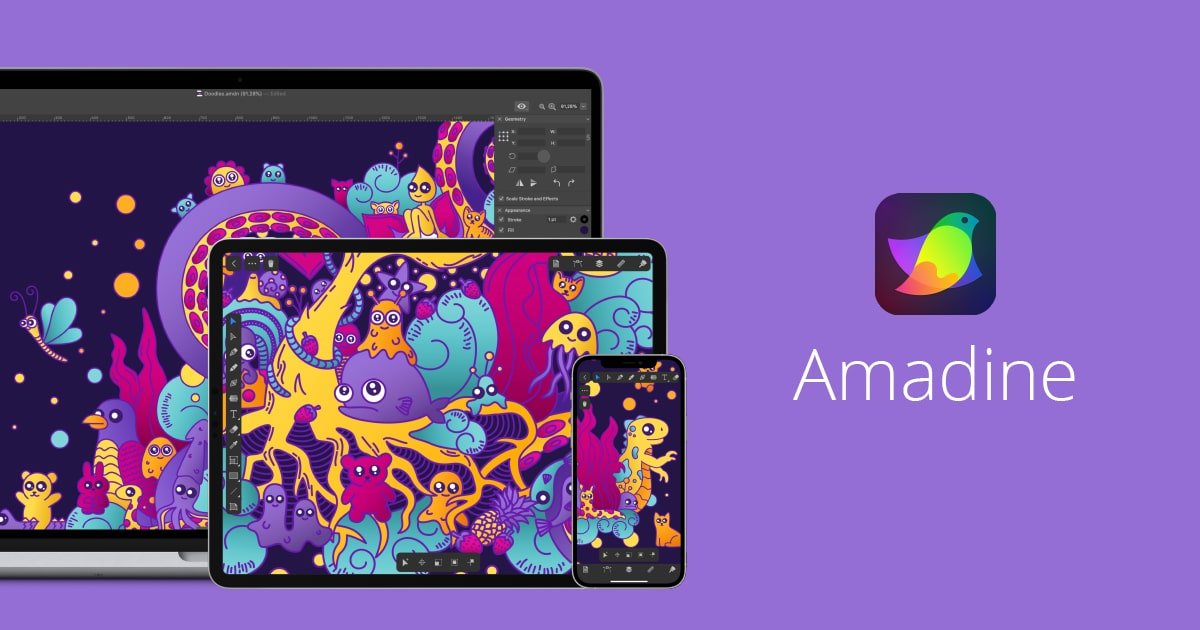
This vector design solution delivers a consistent experience across the Apple ecosystem. It’s available as native applications for macOS, iPadOS, and iOS devices.
You get the same professional toolkit whether working on a Mac, iPad, or iPhone. This multi-platform approach eliminates workflow fragmentation.
Amadine for macOS: A Native Desktop Experience
The desktop program is built specifically for Mac computers. It leverages the full power of macOS for optimal performance.
You benefit from a traditional keyboard and mouse workflow on large screens. The interface is optimized for precision editing and complex projects.
Native support for Apple Silicon processors ensures blazing speed on newer Mac hardware. This makes the software feel responsive even with detailed illustrations.
The desktop version handles resource-intensive tasks with ease. It’s engineered for professional design work without compromises.
Amadine for iPad and iPhone: Full-Featured Mobility
The mobile app contains every feature found in the desktop counterpart. This isn’t a stripped-down viewer or companion application.
You get the complete vector design toolkit in your hand. The interface adapts beautifully for touch interaction on smaller screens.
Optimized gestures make drawing and editing intuitive on tablets and phones. Pressure-sensitive Apple Pencil support transforms iPads into digital sketchbooks.
Both Apple Pencil and Apple Pencil 2 work seamlessly with the software. This enables natural drawing with tilt and pressure recognition.
Designers can capture inspiration anywhere with their iPhone or iPad. The full feature set travels with you for on-the-go creativity.
Cross-Platform Workflow with iCloud
iCloud integration creates a truly seamless design experience. Start a project on your Mac and continue it on your iPad during your commute.
The system automatically syncs your work across all devices. No manual file transfers or export/import steps are needed.
Documents use a specialized .amdc format that’s zipped for efficient cloud storage. Your files remain accessible everywhere while minimizing iCloud space usage.
This ecosystem approach benefits designers who split time between studio and mobile work. Your creative process flows uninterrupted between devices.
The multi-platform strategy represents a key competitive advantage. You maintain access to a unified, professional toolset regardless of which Apple device you’re using.
Core Features and Tools: Inside Amadine’s Toolkit
A robust collection of drawing, editing, and typography tools defines what’s possible within a vector graphics application. This software delivers over thirty specialized instruments for professional work.
Each tool serves a distinct purpose in the creative workflow. Together they form a complete system for vector design.
Intuitive Drawing and Path Editing Tools
The foundation lies in precise path creation and manipulation. The Pen tool offers classic Bézier curve control for clean lines.
For more organic work, the Draw tool combines Pencil and Brush functionality. It responds to pressure input when using compatible styluses.
Essential shape tools include Rectangle, Ellipse, Polygon, and Star options. Each generates clean, mathematical forms instantly.
Specialized path editing instruments enhance control. The Width tool creates variable stroke profiles along any curve.
Scissors and Knife tools cleanly cut paths for modifications. An Eraser removes unwanted sections non-destructively.
The Fusion Tool and Advanced Shape Creation
This standout feature revolutionizes complex object building. It functions as a non-destructive shape combiner.
You merge multiple simple shapes into intricate single objects. The process resembles powerful Boolean operations.
The Fusion Tool preserves editability of all original components. This allows for endless experimentation with form.
It represents a totally different approach to vector object creation. Designers build sophisticated graphics from basic elements.
Professional Color Management and the Recolor Panel
Accurate color is critical for both screen and print projects. The software provides a comprehensive system for color work.
A interactive Color Wheel offers perfect color picking and harmony creation. Full support includes both RGB for digital and CMYK for print.
Color profiles ensure consistency across different devices and outputs. This professional-grade management prevents unwanted shifts.
The Recolor Panel stands out for efficiency. Make large color changes to entire artworks with a few clicks.
Adjust palettes globally or modify specific elements selectively. This feature saves hours of manual editing work.
Advanced Typography with Flowing Text
Text handling goes far beyond basic type insertion. Multiple text tools cater to different layout needs.
The main Text tool combines distortable point text and area text in boxes. Text on a Path follows any custom curve you design.
Text in Shape confines copy within any vector object boundary. This creates interesting visual compositions.
The Flowing Text feature represents advanced typography control. Create and modify linked text boxes across a layout.
Copy automatically reflows between connected containers. This is essential for multi-page documents and complex designs.
Dynamic Strokes, Fills, and Effects
Appearance options provide tremendous creative flexibility. Apply multiple strokes and fills to any single object.
Create unique custom profiles for strokes and save them as presets. Fills can be solid color, gradient, or even image-based.
Visual effects add depth and texture to vector artwork. Available options include Shadow, Inner Shadow, and Blur effects.
Inner Glow and Outer Glow create luminous highlights. All effects remain editable after application.
These dynamic appearance capabilities prevent flat, simplistic graphics. They bring dimension to vector illustrations.
Workflow features include non-destructive Clipping Masks for precise visibility control. A robust layer system supports multiple layers and sublayers.
More than fifteen different layer blending modes enable creative compositing. Store multiple artboards within one document for organized projects.
Import capabilities cover standard vector formats like SVG, PDF, and AI files. Raster imports include JPEG, TIFF, PNG, and HEIC images.
Export your final graphics into vector SVG and PDF files for scalability. Alternatively, output raster JPEG, TIFF, or PNG files for web use.
This comprehensive toolkit ensures seamless collaboration within professional pipelines. Every feature serves the practical needs of modern vector design.
User Experience and Learning Curve
A clean interface and gentle learning curve transform advanced capabilities from intimidating to accessible. This vector graphics program succeeds by prioritizing how users interact with its tools.
The experience begins with a logically organized workspace. Everything has a clear purpose and designated location.
Clean, Customizable Interface
The interface design philosophy centers on reducing visual clutter. A neutral gray workspace keeps your artwork as the focal point.
Essential panels for layers, colors, and tools are easily accessible. They don’t overwhelm the screen or obscure your creative canvas.
You can customize this layout extensively to match your workflow. Rearrange, dock, or hide panels based on your current project needs.
Toolbar customization lets you create a personalized toolset. This flexibility is key for both beginners and seasoned professionals.
The app offers Light and Dark UI themes. Choose what suits your environment and reduces eye strain during long sessions.
Workflow efficiency gets a boost from smart guides and snap-to-grid functionality. These aids ensure precision without constant manual alignment.
Customizable keyboard shortcuts let you accelerate common actions. Tailor them to match your muscle memory from other design software.
User reviews consistently praise this thoughtful approach. Many note it feels less overwhelming than industry-standard alternatives.
Onboarding and Tutorial Support
Simplicity was a core goal during this software’s creation. The development team aimed for an intuitive out-of-box experience.
For users completely new to vector graphics, there is still a learning curve. However, it is notably less steep than with more complex applications.
If you have experience with other design tools, you’ll likely find the transition smooth. Common tool locations and operations follow familiar logic.
The developer provides excellent onboarding resources to bridge any knowledge gaps. A dedicated series of video tutorials helps new users get started quickly.
These tutorials cover fundamental concepts and specific techniques. They are designed to build confidence through practical, step-by-step guidance.
This support structure is invaluable for self-taught designers and hobbyists. It turns the initial exploration phase into productive learning.
Some user feedback mentions minor interface quirks as they adapt. These are typically related to personal preference rather than functional flaws.
Overall, the user experience stands as a major selling point. It appeals directly to those frustrated by unnecessarily complex professional software.
The program manages to feel both powerful and approachable. This balance makes it a compelling choice for a wide creative family.
Pricing, Licensing, and Trial Model
Evaluating software investment requires looking beyond just features to licensing terms. The right purchase model should match your budget and creative needs.
This vector design program offers transparent price structures. You can test everything before committing any money.
Free Trial and Feature Access
The free trial provides complete access to all tools and workflow specifications. You can explore every function without restrictions during evaluation.
There is one key limitation in trial mode. You cannot export your finished work to standard file formats.
This try-before-you-buy approach lets you create real projects. Assess if the workflow suits your needs before purchasing a license.
The trial version works across all Apple platforms. You get the same experience on Mac, iPad, and iPhone devices.
User reviews consistently praise this fair evaluation model. Many mention it as a key factor in their decision to buy.
Lifetime License vs. Subscription
Two primary purchase options are available after the trial period. You can choose between a one-time payment or recurring subscription.
The lifetime license represents a single perpetual purchase. This contrasts sharply with monthly or annual subscription plans.
Separate purchases are required for different platforms. The Mac version and iOS/iPadOS app have independent licensing.
Both platforms can sync seamlessly via iCloud despite separate purchases. Your workflow remains connected across devices.
Purchasing any license unlocks the export feature immediately. Your trial version transforms into a fully functional commercial program.
Compare the one-time cost directly to Adobe Illustrator’s recurring fees. The lifetime model offers significant long-term savings.
This pricing strategy appeals strongly to budget-conscious users. Students, hobbyists, and professionals all benefit from avoiding ongoing fees.
Future major version upgrades might involve additional costs. The current model includes free updates within each version cycle.
Consider your expected use frequency when choosing between payment options. The lifetime purchase makes sense for regular designers.
The subscription plan offers flexibility for occasional users. Both models provide access to the same complete feature set.
Amadine vs. The Competition: How It Stacks Up
When selecting design tools, professionals weigh platform ecosystems against subscription costs. The vector graphics market presents several strong contenders.
Each program targets different user needs and budgets. This comparison helps identify the best fit for your workflow.
Amadine vs. Adobe Illustrator
The industry giant, Adobe Illustrator, sets the standard for professional vector work. Many studios require it for compatibility.
This software challenges that dominance with a different approach. Its one-time purchase model contrasts sharply with Adobe’s subscription.
User reviews highlight key advantages on mobile platforms. The iPad version offers desktop-class tools that Illustrator’s mobile app lacks.
Specific instruments present in this program include the Width tool and Perspective tool. The Knife and Scissors tools also provide advanced editing.
Multiple appearances per object and expanded layer options add flexibility. These features address gaps in Illustrator’s mobile offerings.
The interface simplicity reduces the learning curve significantly. Beginners often find it less overwhelming than Adobe’s complex workspace.
However, Adobe Illustrator maintains advantages in third-party plugin ecosystems. Its advanced typographic controls also remain more comprehensive.
Raw speed with extremely complex files may favor the established giant. This is particularly true for massive, multi-artboard projects.
Amadine vs. Affinity Designer and Others
Affinity Designer represents another popular one-time-purchase competitor. Both programs share a philosophy of simplicity and value.
They address common frustrations with Adobe Illustrator‘s complexity. An easy learning curve and no monthly subscription appeal to cost-conscious users.
Other competitors include Vectornator (now Linearity Curve) and Sketch for UI design. CorelDRAW serves Windows users with its long-established toolkit.
This software differentiates itself with cross-platform Apple focus. Its seamless experience across macOS, iPadOS, and iOS creates a unified workflow.
The target user for each application varies considerably. Illustrator suits large studio workflows requiring absolute industry standard compliance.
Affinity Designer serves professionals seeking robust, cost-effective tools. This program targets Apple-focused users wanting balance and gentle learning.
The developer’s active update history shows rapid feature gap closure. Regular enhancements address user feedback and competitive shortcomings.
For users deeply invested in the Apple ecosystem, this presents a compelling alternative. Those averse to subscriptions will appreciate the lifetime license model.
Consider your specific needs, budget, and platform preferences when choosing. Each vector graphics tool serves a distinct segment of the creative family.
Pros and Cons: An Honest Assessment
A transparent evaluation reveals what a vector graphics program excels at and where it’s still evolving. This balanced look combines user experiences with developer responses.
Real feedback from designers provides the clearest picture. We’ve analyzed reviews and update notes for this honest breakdown.
Your decision should weigh these factors against your specific needs. Consider which aspects matter most for your creative projects.
Advantages of Choosing This Software
The pricing model stands out as a major benefit. A one-time purchase offers long-term cost certainty without subscriptions.
Users appreciate the clean, intuitive interface with its manageable learning curve. This makes advanced vector graphic tools accessible to more people.
Full feature parity exists across macOS, iPad, and iPhone versions. Your workflow remains consistent on any Apple device.
The core toolset includes unique instruments like the Fusion Tool and Recolor Panel. These features enable efficient design work.
Active development shows in regular updates labeled “fixes and improvements.” The responsive support team engages directly with user feedback.
iCloud integration creates a seamless cross-device experience. Your files sync automatically between desktop and mobile.
This approach benefits the entire creative family, from students to professionals. The price and options suit various budgets.
Current Limitations and Considerations
Some compatibility issues affect complex file imports. As one user noted, “I cannot transfer files I made from other vector programs efficiently.”
SVG and AI formats may lose formatting during transfer. This matters for professionals migrating existing projects.
Performance can slow with documents using many effects. Another review mentioned, “Various effects and complex bitmap pattern fills really slow the program down.”
Specific tool behaviors differ from industry standards. The Pen tool and undo/redo functions work differently than some designers expect.
As a newer app, it lacks the vast plugin ecosystem of established competitors. Some ultra-niche advanced features remain absent.
The smaller development team means longer timelines for major additions. However, they demonstrate strong commitment to addressing issues.
Importantly, many limitations are actively being resolved. Frequent updates include bug fixes and stability improvements.
The developer states, “We’re constantly developing it and always consider users’ feedback.” This transparency builds trust in the product’s future.
Export capabilities cover essential formats like SVG, PDF, and PNG. However, perfect round-trip editing with complex Adobe Illustrator files remains challenging.
Consider whether these factors impact your primary use case. A logo designer starting fresh faces different issues than someone converting legacy PDF assets.
Weigh the pros against your device preferences and budget. The active development cycle suggests today’s cons may become tomorrow’s fixes.
Evaluate based on your actual needs rather than hypothetical scenarios. The right tool balances current capabilities with future potential.
Conclusion: Is Amadine the Right Design Tool for You?
Determining if this vector graphics application is your ideal partner requires weighing its Apple-focused ecosystem against your project requirements.
This review finds a powerful, cost-effective vector design program. It excels with a clean interface and lifetime license model.
The tool fits Apple users new to graphic design or frustrated by complex software. Professionals appreciate it as a capable mobile app.
Look elsewhere if you need perfect Adobe Illustrator file compatibility. Windows or Android users won’t find support here.
Try the free trial with a real project. Test drawing, color, and text tools for your illustrations and icons.
For designers in the Apple family seeking professional features without subscriptions, Amadine is an excellent choice. Download the trial to use it firsthand.
FAQ
What file formats can I work with in this vector design app?
The software supports importing and exporting popular vector formats like SVG, PDF, and EPS. You can also open Adobe Illustrator (AI) files and export your projects to raster formats like PNG and JPEG for web use.
Is there a free version available to test the features?
Yes, a fully functional free trial is offered. It gives you complete access to all drawing tools and features for a limited time, allowing you to evaluate if the program fits your graphic design workflow before any purchase.
How does the licensing model work? Is it a subscription?
It uses a one-time purchase model. You buy a lifetime license for a major version, which includes all future updates and bug fixes for that version. This is a cost-effective alternative to recurring subscription plans from other companies.
Can I use my Apple Pencil with the iPad version?
A> Absolutely. The iPad app provides full support for the Apple Pencil, offering pressure sensitivity and tilt functionality for a natural drawing experience. This makes creating detailed illustrations and icons directly on your tablet seamless.
Does it have a tool for easily creating complex shapes?
Yes, the powerful Fusion tool is designed for this. It allows you to combine, divide, and manipulate basic shapes through Boolean operations to build intricate vector graphics quickly without manually editing every anchor point.
Can I sync my projects between my Mac and my iPad?
Yes, through iCloud Drive. You can save your work to iCloud and open the same document on any of your Apple devices, maintaining a smooth cross-platform workflow. Local file support is also available.
How is the color management handled for professional work?
The app includes a professional Recolor panel for global color adjustments. You can manage strokes and fills, work with gradients, use global swatches, and support different color profiles to ensure accuracy in your designs.
Is the interface customizable for different users?
The clean interface can be tailored to your needs. You can show, hide, and rearrange tool panels and inspectors. This flexibility helps streamline the workspace for both beginners and experienced designers.